
Appearance
External Coupling using XMPP or WebSocket
 # Overview EMRALD supports two transports for two-way coupling where events in an external simulation affect EMRALD and vice versa: - **XMPP** (original) using an XMPP server/broker. - **WebSocket** (new) using a lightweight TCP WebSocket endpoint.
 Both transports carry the same action/event payloads defined in MessageProtocol.json (MessageDefLib). Choose the option that best fits your network and deployment needs. A reference WebSocket host is provided in the CouplingWebSocket and WebSocketTestServer projects.
Notice - These coupling features are still in active development and subject to change.
XMPP Protocol
For XMPP message, passing a server is used to send messages from one client to another. The server handles a the message authentication and send/receive verification. EMRALD has a built-in XMPP Server and automatically runs it if the model contains a reference to and external application. See External Simulations. Coupling with another application requires some software development. You must add an XMPP package suitable for the source code of the application or write a wrapper that is able to handle the message requirements and call the applications API.
WebSocket Protocol (new)
WebSocket coupling removes the XMPP dependency and communicates directly over a WebSocket endpoint. EMRALD's WebSocket client helper (WebApiCoupling in the CouplingWebSocket project) sends and receives the same EMRALD action/event payloads as XMPP. A sample host implementation lives in WebSocketTestServer.
Typical flow:
- Client connects to
ws://<host>:<port>/(sample server defaults tows://localhost:8465/). - Client sends
{"command":"GetAppOptions"}to discover available app names. - Client sends
{"command":"CreateConnection","appName":"<name>","watchItems":[{"name":"var1","type":"double"}, ...]}; server returns aconID(GUID). Each watch item carries the variablename, its EMRALDtype, and an optionalWatchEventCriteriafParser boolean expression string (e.g."(valve_12 > 5) & (valve_12 < 10)"); when present, the server only calls back while the expression is true. - Client sends actions with
{"command":"SendActionMsg","conID":"<conID>","action":<TMsgWrapper JSON>}. - Server returns EMRALD event messages that include
conIDandmessage(theTMsgWrapperJSON).
See Building a WebSocket Coupling for a step-by-step guide to adapting the sample server to your own simulation.
Linking Process
When opening an EMRALD model that contains a reference to an external application, you must establish a connection to that application before you can run the model; see Linking Process. Every message specified in EMRALD for that reference will be sent to the assigned XMPP connection and for each event received from that application EMRALD will see if the name matches a linked variable specified for it. If there is a match, that variable will be updated with the value from the event.
Message Requirements
The following outlines what is used to connect, the messages passed between EMRALD and the simulation client, and a recommendation on the structure for processing and sending messages.
Connecting (choose one transport)
XMPP
The connection parameters for linking to the XMPP server are as following: User - Unique identifier for the external application. If more than one application is linked to EMRALD each must have a different user. Domain - The domain location where EMRALD is running from typically this will stay as "localhost" when running on a single machine. If EMRALD is on a different machine, then this is the IP address of the machine running EMRALD. Host - currently a constant set to "localhost" Resource - This is the connection group for the messaging. When EMRALD feature allows multiprocessing, there will need to be multiple instances of the external application with incremental values for each thread. Password - Default is "secret" this can be assigned in EMRALD when starting up through command line. To see command line options, run the exe with the command -help.
WebSocket
Endpoint - WebSocket URL, e.g., ws://localhost:8465/ for the sample server. App name - select one of the names returned by GetAppOptions. conID - GUID returned by CreateConnection and echoed in all subsequent messages. Watch items - optional list of variable IDs you want the server to monitor and send back via etCompEv. Authentication - handled by your WebSocket host (for example, shared secret or network ACLs). EMRALD does not send XMPP-style credentials on this transport.
Message Format
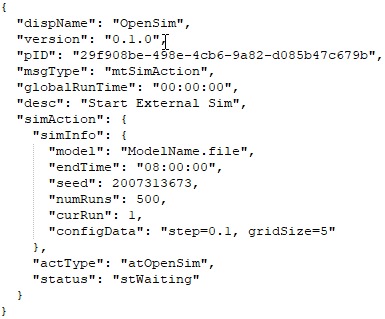
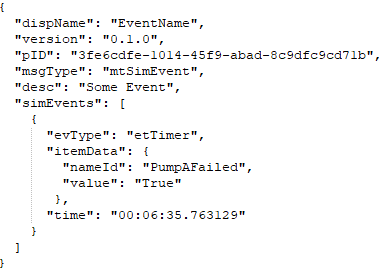
The messages are in JSON format and there are two types of messages: (1) Action Messages, messages from EMRALD for the client to do something with, (2) Event Messages, messages from the client that EMRALD needs to respond to. The message format can be found in c# format under the MessageDeffLib project in MsgWrapper.cs, and a schema to test against is found in MessageProtocol.json. The following sections go over the different varibles and types for the messages.
Action Message Example
Event Message Example
Action Message Types - From EMRALD
The following are the messages that EMRALD may send to the coupled simulation client. The type will be sent as text in the JSON but can be used as an enumerated type (prefixed with "at" meaning Action Type)
atCompModify - This message is specifying that a particular item is to be modified in the coupled simulation. Modified can also mean created or deleted depending on predetermined agreement between the coupled simulation design and the modeler. on what data in the message means. The data in the message is specified by the coupled simulation specifications, and the user making the EMRALD model must follow those specifications.
atTimer - Informs the coupled simulation of the next time that a change needs to occur in EMRALD. This is a callback timer that the coupled application must respond with an atTimer message and wait for a response when its simulation reaches this global time.
atOpenSim - Specifies a model to open and the startup parameters.
atCancelSim - Tells the coupled application to stop the current simulation.
atPauseSim - Pauses the current simulation (for future multiple coupled simulations, not currently in use).
atContinue - Tells the application to continue the simulation when EMRALD is done on its side.
atRestartAtTime - Specifies time for the application to backup to in its simulation. (for future multiple coupled simulations, not currently in use.)
atPing - A user debug message only. This is intended to just verify that an XMPP connection is established.
atStatus - A user debug message only. This is asking the running status state and any current info to help the user determine what is happening in the coupled simulation.
atTerminate - When EMRALD is done running its simulations and is shutting down, the coupled application should do the same.
Event Message Types - From Client
The following messages are what can come from the coupled application. The type must be sent as text in the JSON but can be stored however desired. (The messages are prefixed with a "et" meaning Event Type.)
etCompEv - A component or item in the coupled application simulation has changed, and this passes the new value information.
etTimer - An EMRALD callback timer has been reached in coupled application.
etSimLoaded - Tells EMRALD the simulation is ready to start.
etEndSim - Tells EMRALD the simulation is complete either because of internal conditions, or the max time specified by the user was reached.
etPing - Is a repose to a ping from EMRALD.
etStatus - This message can be sent at any time by the coupled simulation. It must be sent in response to an atStatus message. A message type of stError will cause EMRALD to end its simulation.
Status States
Status message return types is to be sent to EMRALD whenever an atStatus message is received. These should also be used to maintain the current state of the connected application; see the next section.
- stWaiting - coupled simulation is waiting for what to do next from EMRALD.
- stLoading - loading after an atOpenSim.
- stRunning - executing the coupled simulation code, should also have info on what it is doing to help debug.
- stIdle - initial startup condition or after done running a simulation.
- stError - an error on the coupled side that makes it unable to continue. Should contain additional detail on the cause of the error.
Suggested Execution Flow
The client application needs to maintain the following variables:
SimTime - Measure the chronology of the client simulation time, starting from zero seconds when it begins at the first atContinue message from EMRALD. The "time" value in the messages is the EMRALD global time from the beginning of the EMRALD simulation.
CallbackTime - Is the EMRALD global time at which the coupled application must pause and return control to EMRALD if no significant event happens sooner.
CallbackItem - Save the itemData (name, value). This is given when an atTimer message is sent. Must provide the name and value when sending a etTimer message at the callback time.
EndTime - The maximum local time, to guard against runaway simulations, at which AVERT must terminate its simulation. This is specified by the user and passed during the opening.
StartTimeDiff - Is the difference between EMRALD global time and AVERT's SimTime.
Status - Indicates the state of coupled interaction with EMRALD.
It is suggested to use the following flow method for processing and replying to messages. The coupled application should shift through a the status states depending on what messages it receives and what happens in its simulation. This outlines the messages that the application will get given the different states it is in, what it should do, and the response messages that should be sent. It is recommended that a status message be sent to EMRALD for each change in status state to assist in debugging. Also any message received that is not in line with what was expected should also be sent as an error when in a debug version of the code.
[In Any Status State]
Note - A stStatus message can be sent from the coupled application at any time. If an Error message is sent, EMRALD will stop operations as soon as it can.
atPing
- Respond with etPing message with a time of (SimTime + StartTimeDiff).
- Stay in current status state.
atStatus
- Reply with etStatus current status state and time of (SimTime + StartTimeDiff).
- Stay in current status state.
stIdle
Initial startup condition or after running a simulation.
atSimOpen
- Set EndTime to endTime property of the message
- Set StartTimeDiff to the EMRALD global time in the message.
- Clear any temporary data/results
- Shift Status state to stLoaded.
atTerminate
- Clear any temporary data/results
- Shut down application and any associated threads.
stLoading
Coupled application is loading after an atSimOpen status state.
- Load the specified model. (For efficiency, application must determine if it is the same model and if it can simply reset the model back to the beginning, reinitializing the data)
- If the model is not found or if loading fails, send atStatus with type atError to EMRALD, including a description of the problem, and shift to stError state.
- If the model loaded correctly, send etSimLoaded message to EMRALD.
- If the model loaded correctly, shift to stWaiting.
stWaiting
In this status state, the coupled application is poised to simulate, but is waiting to allow EMRALD to alter the conditions that affect its simulation. This status state is entered from stLoaded or stRunning once complete.
atCompModify
- Make or save the change in the model to the parameter and global time specified in the message.
atTimer
- Set CallBackTime to the time parameter in the atTimer() message.
- Save the CallbackItem data, name and value, to pass back when timer is reached.
atContinue
- Shift to status state of stRunning.
atCancelSim
- Save current results.
- Stop simulation.
- Send etEndSim message with time of (SimTime + StartTimeDiff).
- Shift to status state of stIdle.
stRunning
This is the active execution state for the coupled simulation, advancing time on its side. No events should affect the simulation when in the running state, it only stops on the following conditions: If SimTime + StartTimeDiff >= EndTime or if the simulation naturally terminates due to internal settings/conditions.
- Stop the coupled simulation.
- Save current results.
- Send etEndSim message.
- Shift to stDone status state.
If SimTime >= CallbackTime
- Pause the coupled simulation.
- Send etTimer message with the name of CallbackName and the time of (SimTime + StartTimeDiff).
- Shift to stWaiting status state.
stDone
Coupled simulation is done, and results have been saved, just waiting for EMRALD to be done with the results and this run. Got there from an atCancelSim in stWaiting or from stRunning after application sends an etEndSim message. atContinue
- Shift to stIdle state
atTerminate
- Discard any temporary data/results
- Shut down application and any associated threads.
stError
In this condition, there was an error somewhere in the simulation or communication that coupled simulation could not continue.
atTerminate
- Shut down simulation and all associated threads.
State Diagram
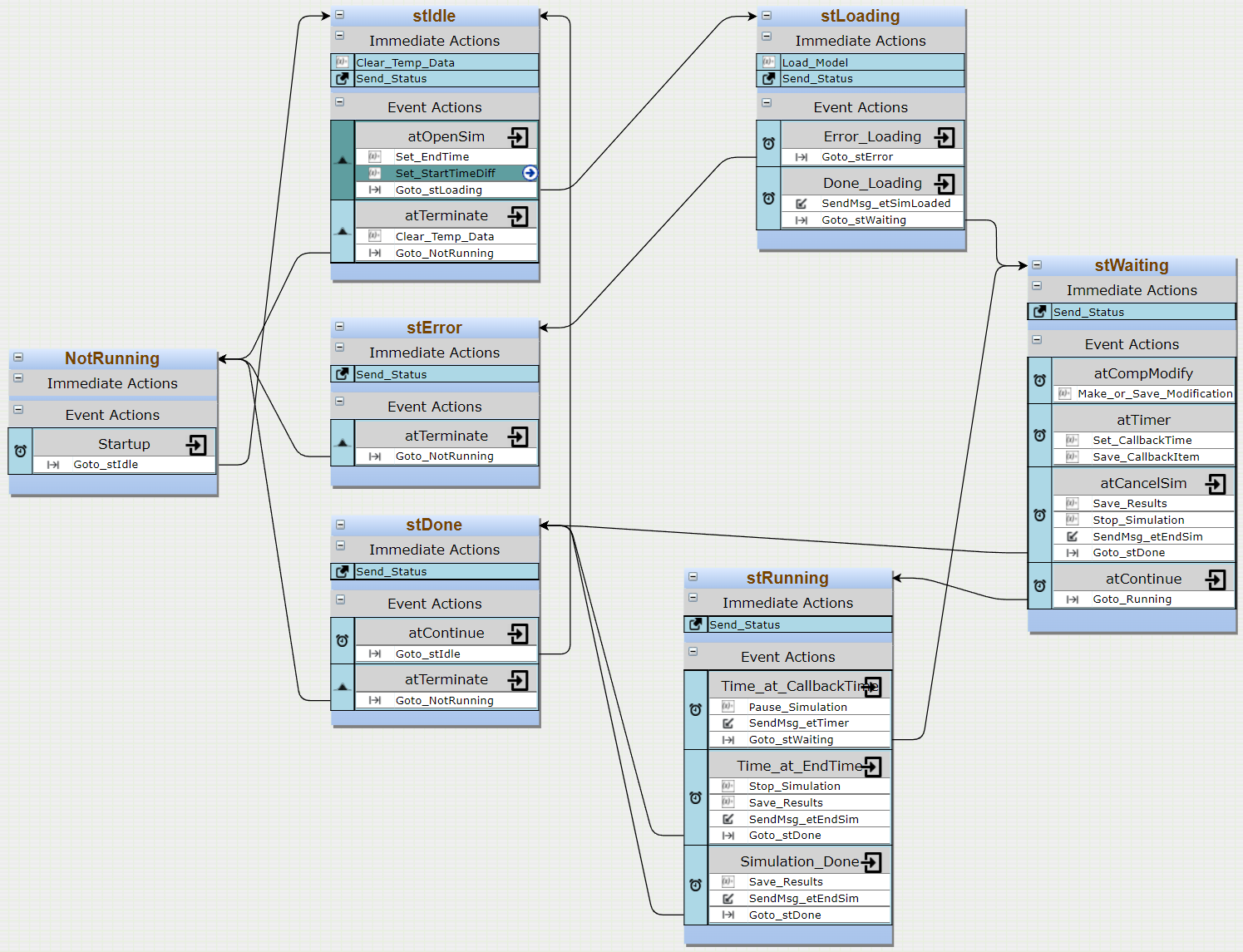
This state diagram shows the recommended design flow for reacting to EMRALD messages outlined in the above section. Immediate actions are what should be done when entering the status state. The events are either messages from EMRALD or conditions that happen inside the simulation. The subitems under the Events are Actions to be taken if the Event occurs. Both atPing and atStatus are ignored in this diagram because they should be responded to in every state.
Sequence Diagram
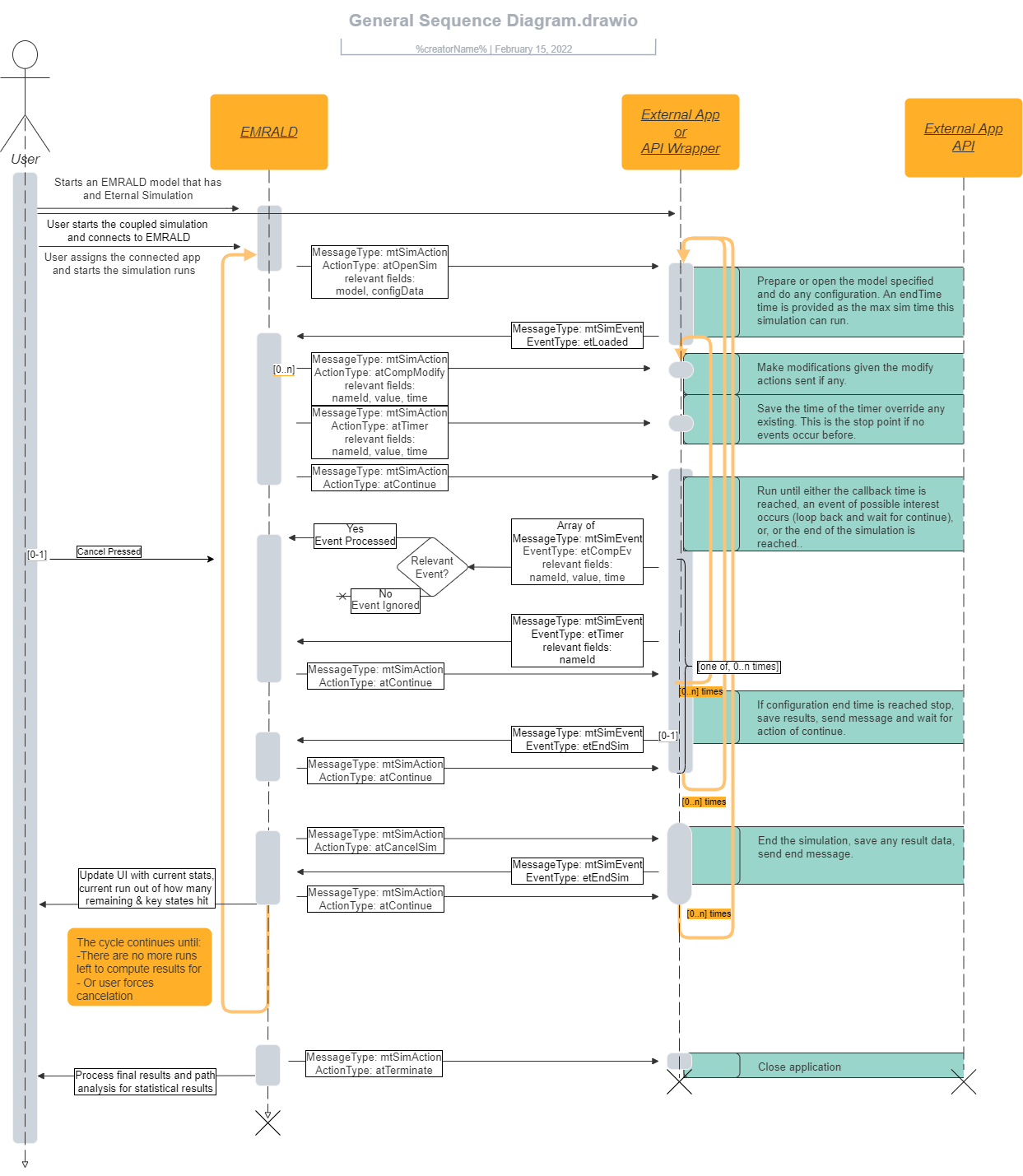
This sequence diagram show the flow of messages between the two applicaitons.
Testing
The EMRALD simulation engine UI has a tab for testing the XMPP messaging. There is also a demo XMPP client project in the source written in C#. For WebSocket, a sample host is available for quick end-to-end checks.
EMRALD UI
To couple with an external application first load a model. If it loads with no errors, then go to the simulate tab.
Establishing a connection
The external simulation or client application must then be opened and connected. Next the user clicks on the items in "Links to External Simulations" in the upper left. 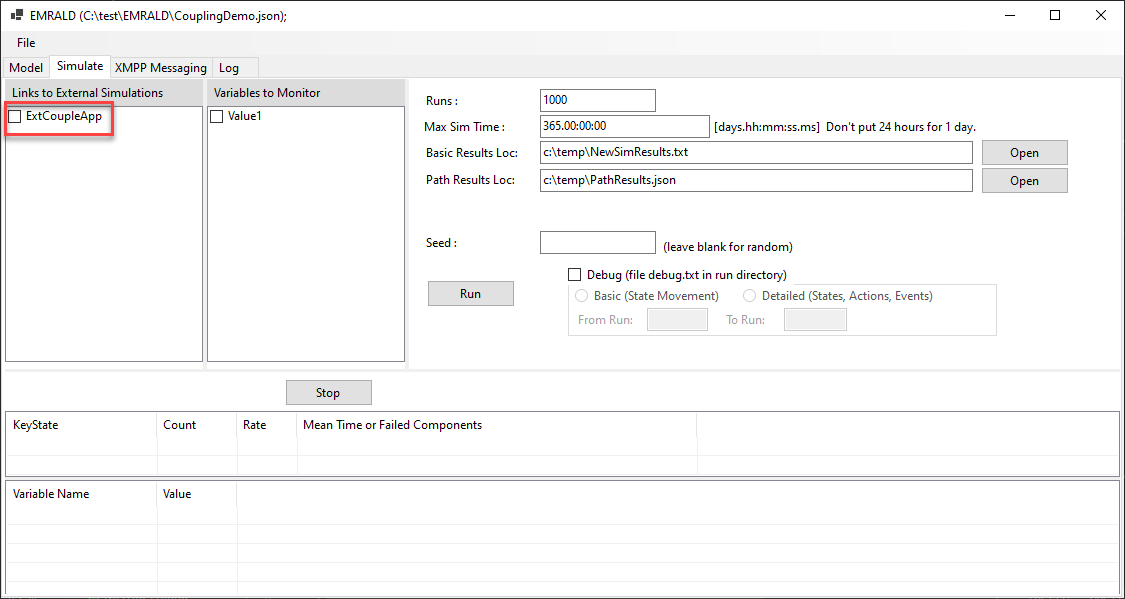
This pops up a list of all clients currently connected to EMRALD. The user selects the correct linked application for the EMRALD item. 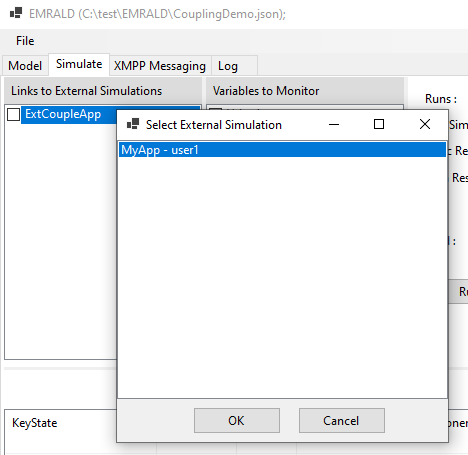
Manually send EMRALD messages
The XMPP Messaging tab allows the user to manually construct and send messages and see messages sent from a coupled application.
The left side shows the connected clients and the messages received. 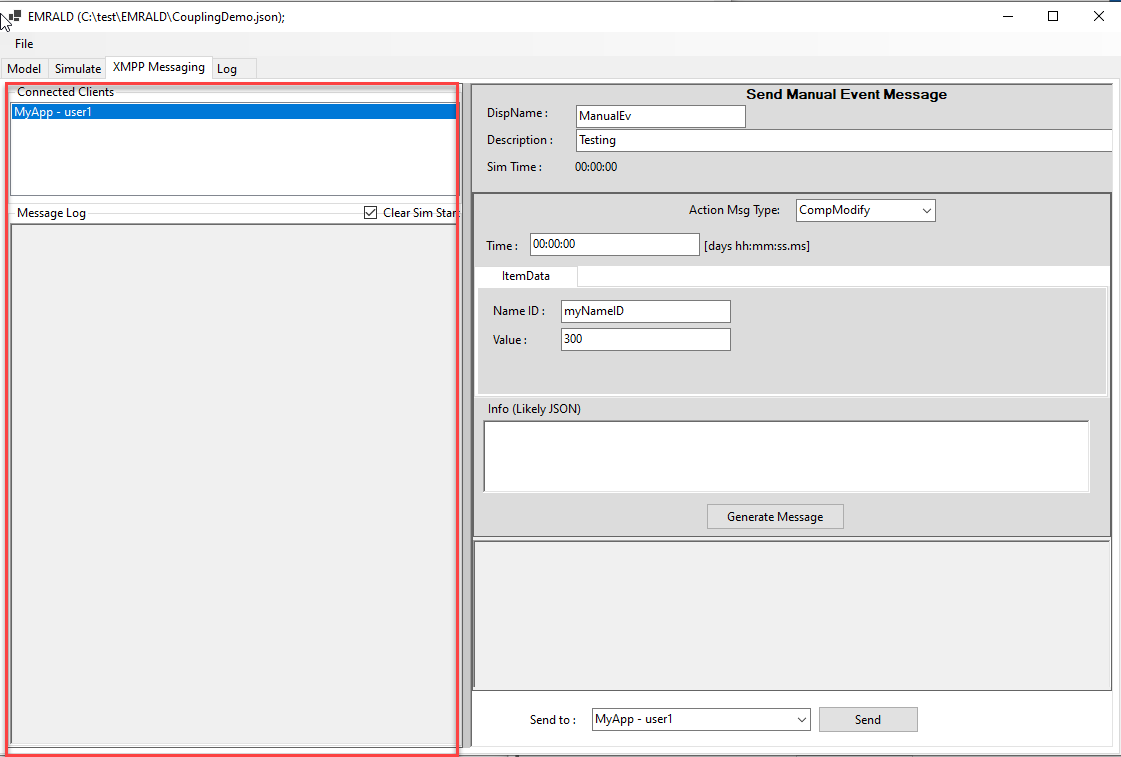
The right side allows the user to manually construct a message to send to the coupled application. 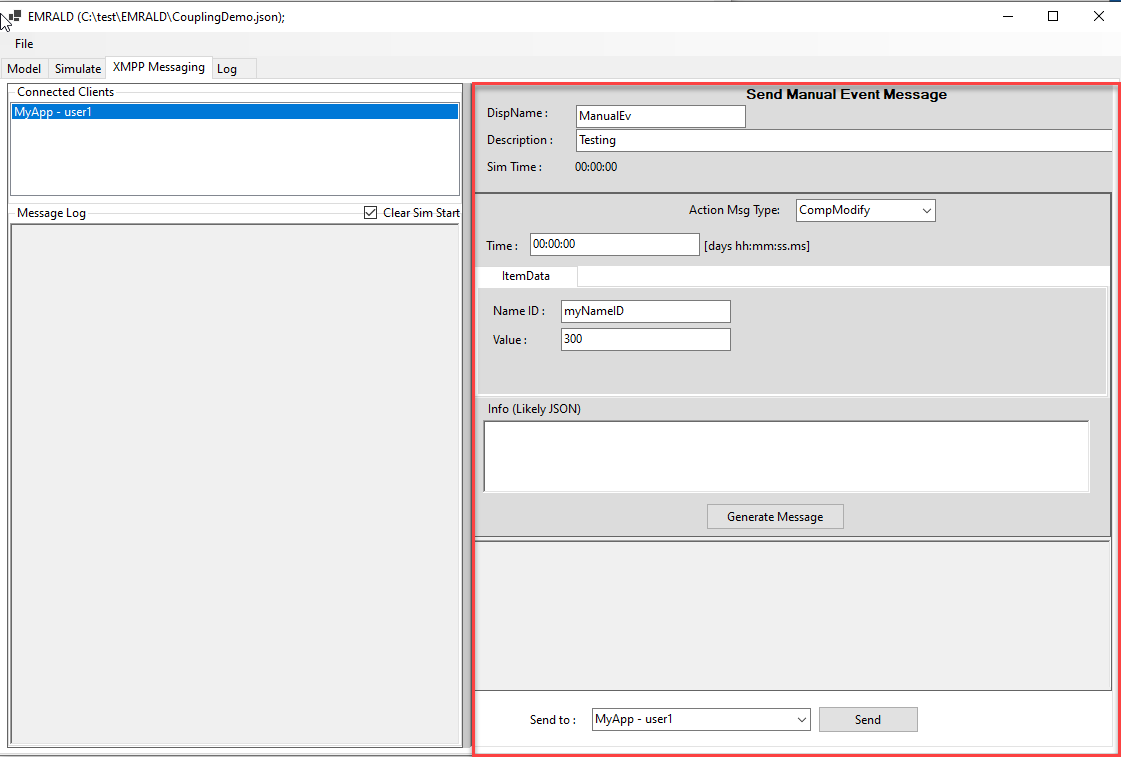
If the user knows or has the JSON message to be sent they can type or paste it in the bottom right section. 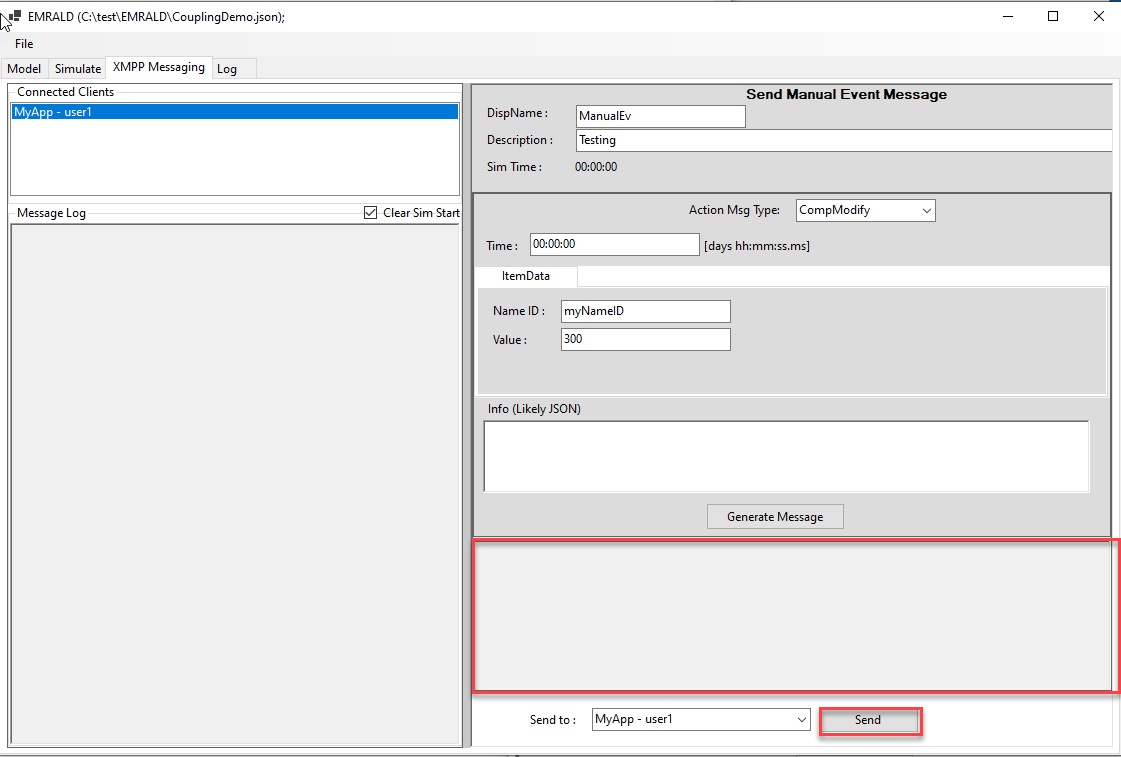
By selecting and filling out the top options, a message can be automatically constructed. The options depend on the type of message selected by the user. Clicking the "Generate Message" button autogenerates the JSON message in the box below. 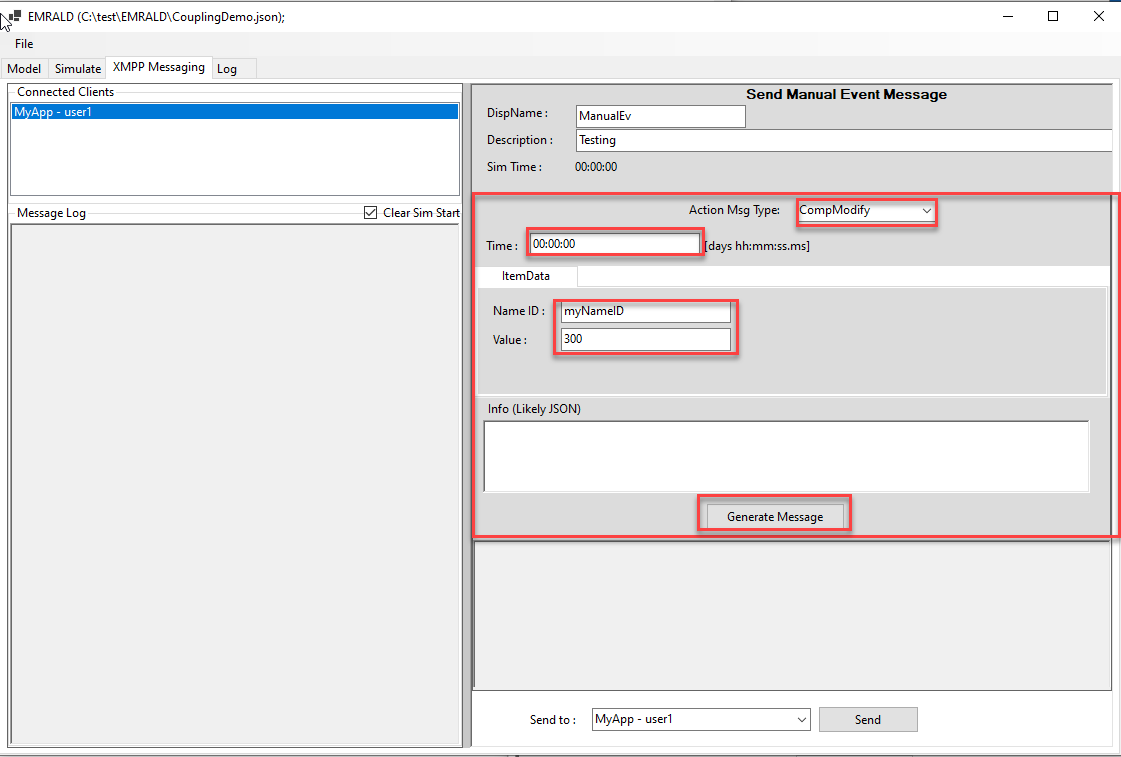
Client Demo
The source code contains demo code for a client in c# using the MatriX package. (The XmppClient project in the EMRALD code repository EMRALD Source) This project allows you to see the messages coming from the EMRALD simulation and respond to them manually. This allows you to independently test and verify the EMRALD model before connecting to the external application.
Connections/Send Tab
After EMRALD is running, define the user, domain and resource (See above section Message Requirements -> Connecting). Then, click connect. 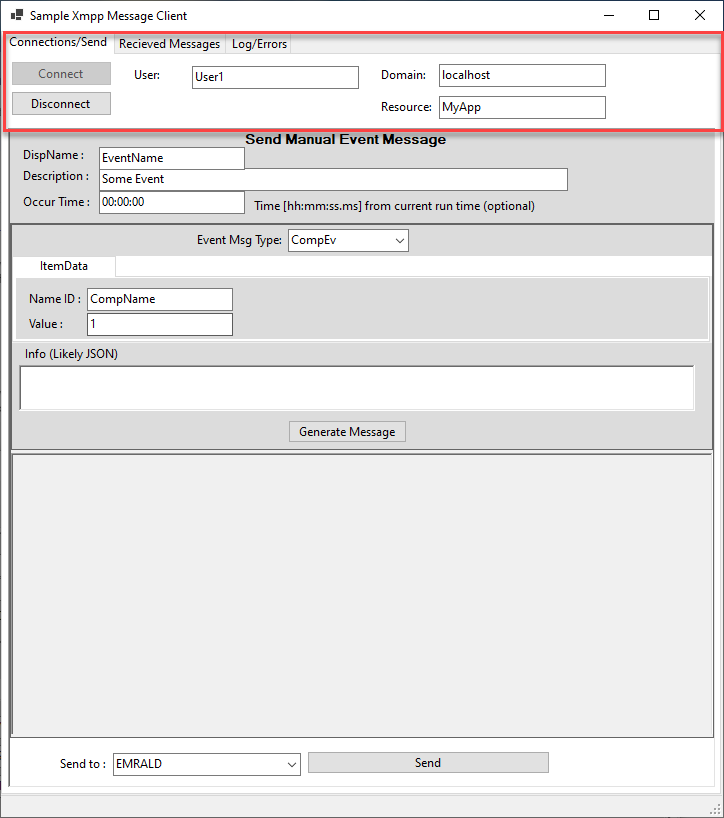
Connecting this tab allows you to manually send messages to the connected EMRALD simulation or other clients connected. This can be done by pasting the message in the bottom text area and selecting the client in the bottom drop-down menu and clicking "Send". For assistance in constructing a message options can be selected in the center area. The items DispName, Occur time and Event Msg Type need to be assigned for every message. When selecting the Event Msg Type, the sub options will very as needed. Refer to messaging requirements above to determine what values to set for each message. After assigning the values click the "Generate Message" button. A correctly written JSON will be generated in the text area below. Then, click send. 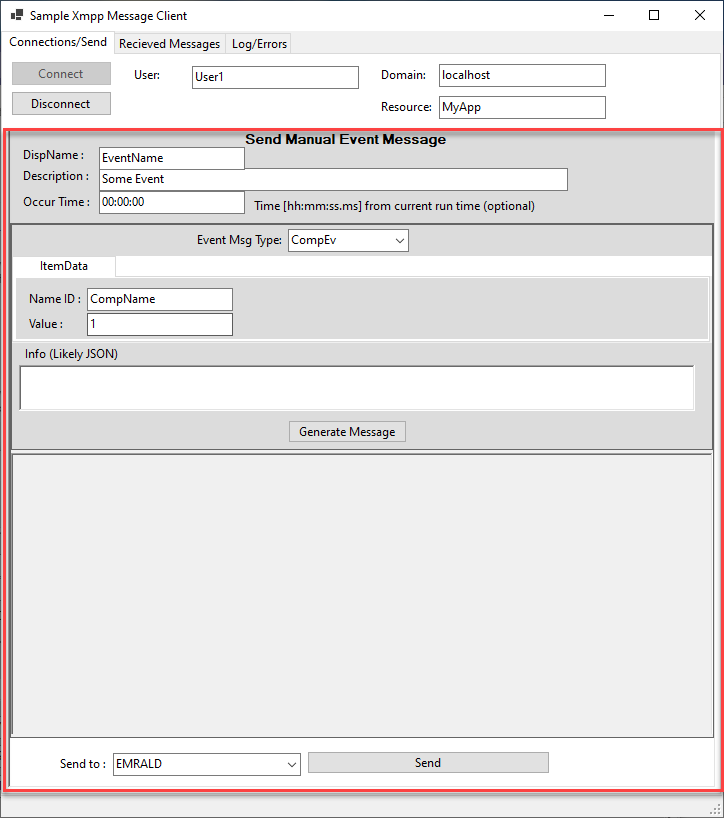
Received Messages
Each message received is posted in this tabs list. 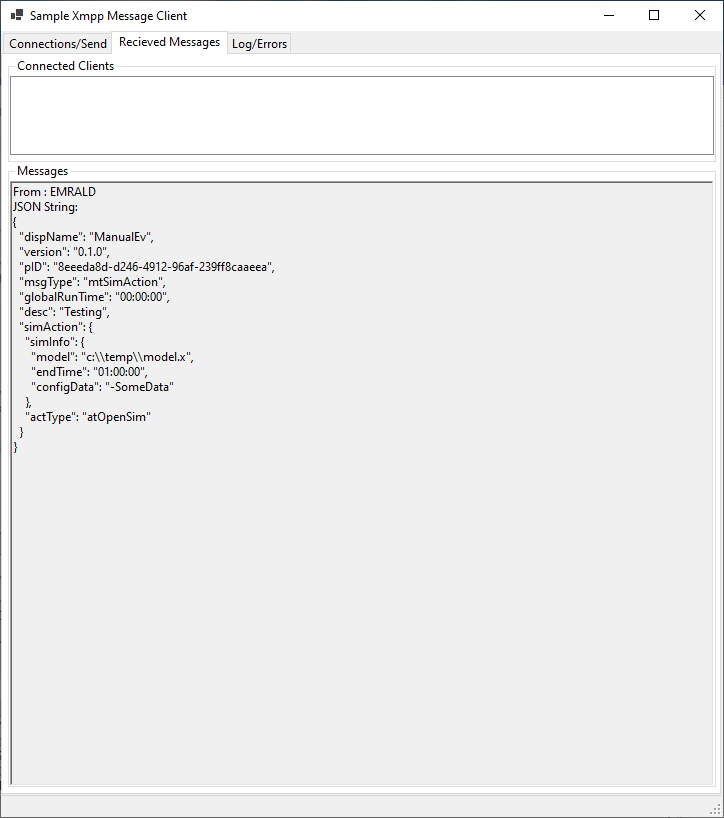
WebSocket Sample Host
- Example server:
WebSocketTestServer(defaults tows://localhost:8465/). - Client helper used by EMRALD:
WebApiCouplingin theCouplingWebSocketproject. - To try it:
- Build and run
WebSocketTestServer. - In EMRALD, set the external simulation's coupling type to WebSocket and enter the server URL.
- Use the same action/event messages described above; only the transport changes.
- Build and run