
Debugging and Troubleshooting
Understanding why a model is not behaving as expected is one of the most important skills in building reliable EMRALD simulations. This section covers how to use the available output files and modeling strategies to identify, reproduce, and resolve errors in your model.
Scope of this guide: This document is intended to help you find and resolve errors while building and loading an EMRALD model — for example, diagnosing why the Solver rejects a model on load, or why a simulation isn't producing the state transitions you expect. It is a tactical debugging companion, not a substitute for formal model validation. Once your model loads and runs, use the EMRALD Verification and Validation Methodology to systematically test and exercise the model against expected results before relying on it for analysis.
This section is divided into two parts:
- Understanding the Debug File — A reference guide to what the debug file contains and how to read it.
- Troubleshooting Strategies — Practical techniques for finding and fixing errors in your model.
Understanding the Debug File
The EMRALD Solver produces up to three output files after running a simulation: Basic Results, Path Results, and an optional Debug File. For diagnosing model problems, the debug file is the most detailed source of information.
Enabling the Debug File
The debug file is not generated by default. To enable it, navigate to the Simulation Controls section of the Solver, check the Debug box, and select either Basic or Detailed output. You can also define a range of runs to generate the debug output for.
See Simulation Controls for step-by-step instructions on enabling the debug file.
Once generated, a file named DebugLog.txt is saved to the directory where the EMRALD solve engine is executed from. Note that each new run overwrites the previous debug file, so rename and save a copy before running again if you need to keep the output.
What the Debug File Contains
The debug file comes in two levels of detail, selected when enabling the option in the Solver.
Basic records all state movements within the specified range of runs. Each entry is structured as follows:
StartRun: [run number]
EnterState: [state name], time: [simulation time], Cause Event: [event name], fromState-Action: [action name]
ExitState: [state name]
...
EndOfRun: [run number]
Detailed records all state movements as above, and additionally captures the events triggered and transition actions taken that led to each state exit:
DoEvent: [event that was triggered]
DoTransitionAction: [transition action triggered from the event]
ExitState: [state name]
For a full breakdown of the Basic Results and Path Results file formats, see Solver Output Files. Make sure multi-threaded solving is turned off when enabling the debug file.
Reading the Debug File: What to Look For
When reviewing the debug file, focus on the following:
Were your key states actually reached? Search the debug output for the name of your key state. If it never appears across many simulation runs, consider two possible causes: the model logic may not be routing the simulation there correctly, or the probability of the events leading to that state may be so low that it rarely occurs in a small number of runs. Compare the actual state path in the file against the path you intended to model, and check the probabilities of the relevant events if the path looks correct.
Where does the simulation diverge from expectation? Trace the state transitions from the starting state forward. Look for the first point where the simulation enters an unexpected state, as this is usually where the error lies.
Do the cause events and actions match your intent? Each
EnterStateentry records the event and action that caused the transition. If the wrong event or action is listed, that points directly to where the model logic needs to be corrected.Use the Detailed file when the Basic file is not enough. If the Basic file shows unexpected state movements but does not reveal why, switch to the Detailed output. This will show exactly which events fired and which transition actions were executed before each state exit.
For information on how states and key states are defined, see States.
Troubleshooting Strategies
Once you have enabled the debug file and can read its output, the following strategies will help you efficiently identify and fix errors.
1. Run a Small Number of Simulations First
The default number of runs in EMRALD is 1000. Before running at that scale, reduce the run count to a small number, even just 10 to 20. This keeps the debug file short and makes it much easier to read through individual simulation paths. Once you are confident the model is behaving correctly, scale the run count back up.
For information on setting the number of simulation runs, see Simulation Controls.
2. Use the "Run to 1" Technique for Rare Events
If the probability of a key state is very small, the error you are looking for may almost never appear in a normal simulation run, making it nearly impossible to observe in the debug output.
To work around this, temporarily set the probability of the relevant events to 1.0 (certainty). This forces the simulation to always take that path, allowing you to:
- Confirm that the state logic routes correctly when the event does fire.
- Observe the full state transition sequence in the debug file every run.
- Verify that actions and downstream states all behave as intended.
Once you have confirmed the logic is correct, restore the original probability values.
Note: Remember to revert all probabilities before running your final analysis. Running with artificially elevated probabilities will produce results that do not reflect your actual model.
For information on configuring event probabilities, see Events.
3. Reproduce the Error Consistently
Intermittent errors are the hardest to debug. To make an error reproducible:
- Use a fixed random seed. EMRALD supports prescribing a seed value in the Simulation Controls. This ensures the same sequence of random samples every run, so you can re-run the simulation and get identical results. See Simulation Controls.
- Limit the debug output to specific runs. When enabling the debug file, EMRALD allows you to specify a range of runs to record. If you know which run number produced the error, set both the start and end of the range to that run number to isolate just that output.
- Document the conditions before making fixes. Before making any fixes, note the run number where the error occurred, the states visited in that run, and the values of any relevant variables. Set a fixed seed in the Simulation Controls to keep that run number consistent across subsequent simulations. After making your fix, re-run and confirm the error no longer appears on that same run.
4. Cross-Check Path Results Against Your Intended Logic
The Path Results file records the sequence of states visited in each simulation run that reached a key state, including the rate, count, time to reach each state, and the cause path in reverse order. Use this file to:
- Verify that the simulation is following the intended logic path to the key state.
- Identify which events and actions are driving transitions along the path.
- Check the timing of when states were reached against your expectations.
If a path appears in the results that you did not intend, trace it backwards through the causes listed in the file to find where an unintended transition is occurring.
See Diagrams for guidance on how state transitions are defined and how arrow types (solid gray vs. dotted green) affect simulation flow.
5. Check for Common Modeling Errors
If the debug output does not immediately reveal the problem, review your model against these common error sources:
Duplicate state or action names — Names must be unique across the entire model. If a duplicate is introduced, an error message will appear prompting you to choose another name. See States and Actions.
Missing start state — Every simulation must have at least one start state defined. If none is set, the simulation has no entry point. Note that a model can have more than one start state; all start states are activated simultaneously when the simulation begins, so an unexpected initial state combination may indicate an extra start state was left set. See States.
Wrong diagram type — Switching between Single State and Multi State diagram types can introduce errors due to the different modeling options each supports. Plan your diagram type before building. See Diagrams.
Incorrect arrow type — Solid gray arrows exit the current state; dotted green arrows add a new current state without exiting. Using the wrong arrow type is a common source of unintended behavior. See Diagrams.
Single State diagram missing True/False values — Single State diagrams must have at least one state with a True value and one with a False value assigned, or the model will fail to load. See States.
Logic tree evaluation issues — If a component logic event is not evaluating as expected, check that the logic tree is correctly constructed and that the assigned states match the intended Boolean conditions. See Logic Trees.
Transition action in Immediate Actions exiting a state — A transition action placed in the Immediate Actions list cannot exit a state; it can only add a new current state. If you intend to exit, the action must be placed under an event. See States.
6. Use the Solver Error Panel as a First Check
Before diving into the debug file, always review the Error panel at the bottom of the Solver's Model tab after loading your model. This panel displays errors detected at load time and will identify which event, action, or other model piece is incorrect and what the error was. The model will only display one error at a time, so once a fix is made, click Validate to check the model again, and repeat until all errors are resolved.
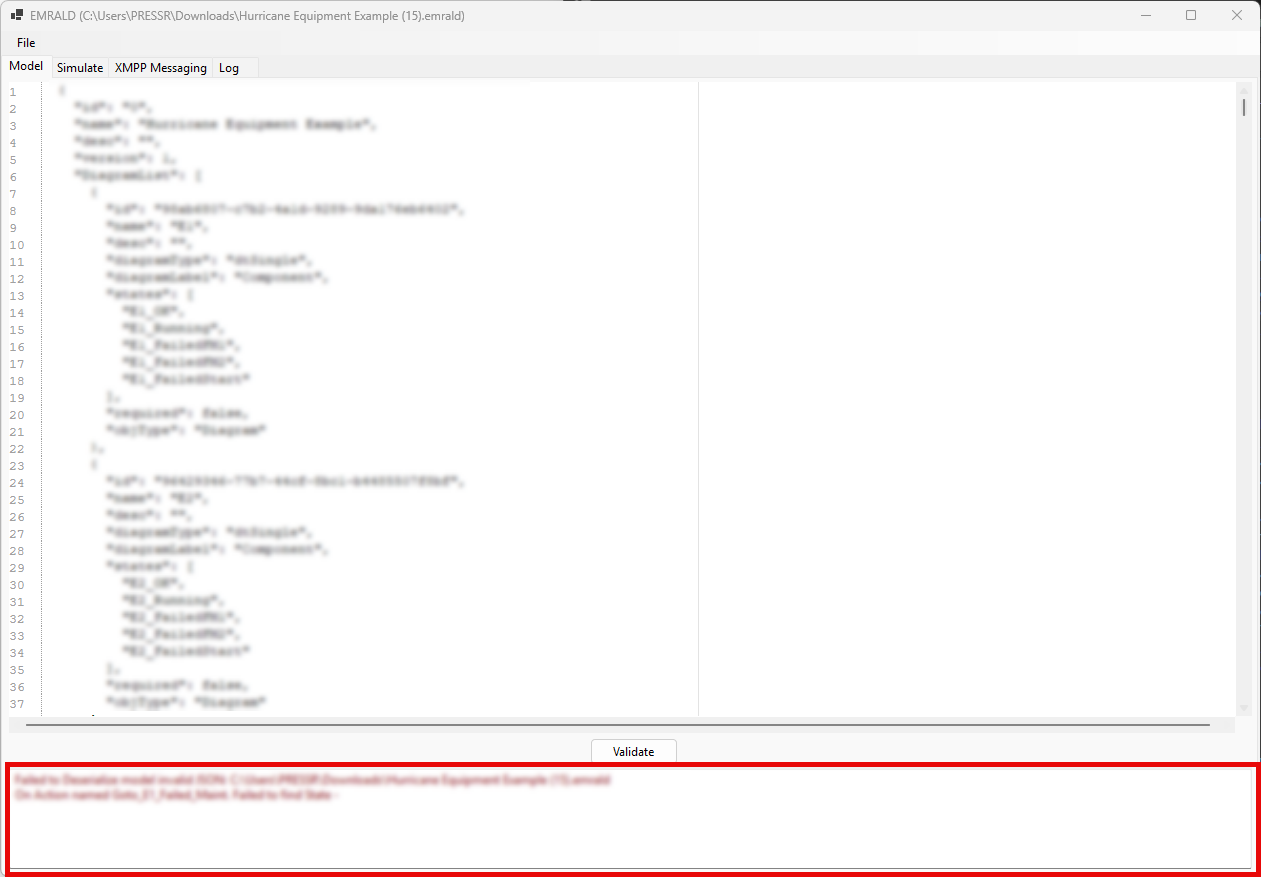
See Model Tab for example error messages and how to fix them.
7. Simplify, Then Rebuild
If you cannot isolate the error using the above strategies, consider the following approach:
- Save a copy of your model.
- Strip the model back to its simplest functional form, keeping only the diagrams and states directly involved in the problem.
- Run the simplified model and confirm whether the error still appears.
- Add complexity back in incrementally, running the simulation after each addition.
This process identifies the exact component or interaction causing the problem and prevents you from chasing errors that are symptoms of a deeper structural issue.
Quick Reference: Where to Look First
| Symptom | Where to Look | Documentation Link |
|---|---|---|
| Key state never reached | Debug file — state transition log | States |
| Wrong state being entered | Debug file — cause event and action entries | Events, Actions |
| Unexpected simulation path | Path Results file | Diagrams |
| Error on model load | Solver Error panel | Solver |
| Rare event not observed | Temporarily set probability to 1.0 | Events |
| Duplicate name error | State or action name list | States, Actions |
| Logic not evaluating correctly | Logic tree structure | Logic Trees |
| Single State diagram fails to load | Check True/False values on states | States |
| Immediate action not exiting state | Move action under an event | States |