
Appearance
Multi-Thread Solving
To speed up the simulation process, EMRALD has a built-in feature to allow multi-thread solving. Any files referenced by the model will be copied into a seperate folder for each thread to avoid conflicts. File paths can be specified in the Change Variable Value and Run Application Actions, the Variable Condition Event, and the Document Link Variable. Debug mode is disabled while multi-thread solving is enabled.
Setup
To enable multi-threaded solving, check the box next to "Multi Threaded". 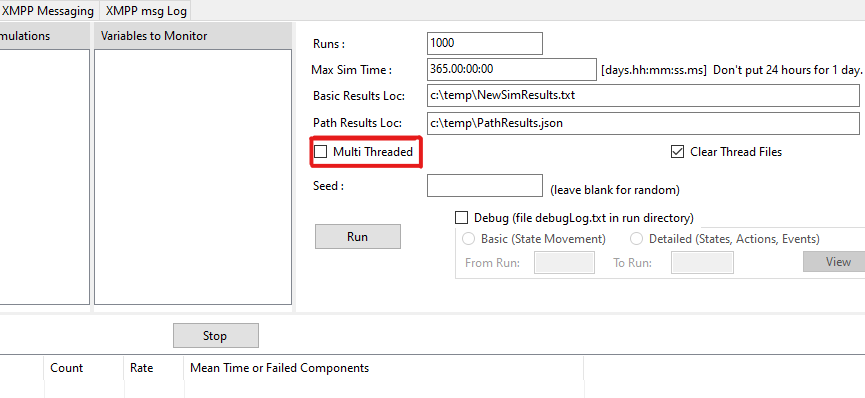
Any references to paths or file locations within the model are parsed and recorded. Upon selection, the user will be prompted to verify their path references to any items within their model that need to be copied for each variable. If there are additional files that are needed (e.g., if an executable being run has other files it needs), then these items can be added with their corresponding buttons on the right.
Once "OK" is selected, the model json file is modified to save the reference information. The relative path adjustments used for multi-threading are set up in the Solver GUI and may need to be adjusted for each machine where the model is run, especially when absolute paths or machine-specific folders are used. The model cannot be run from command line with multi-threading until this has been saved. After saving, the model can be run using the command line options. To assign how many threads use the parameter json option for command line running and assign threads to > 0. 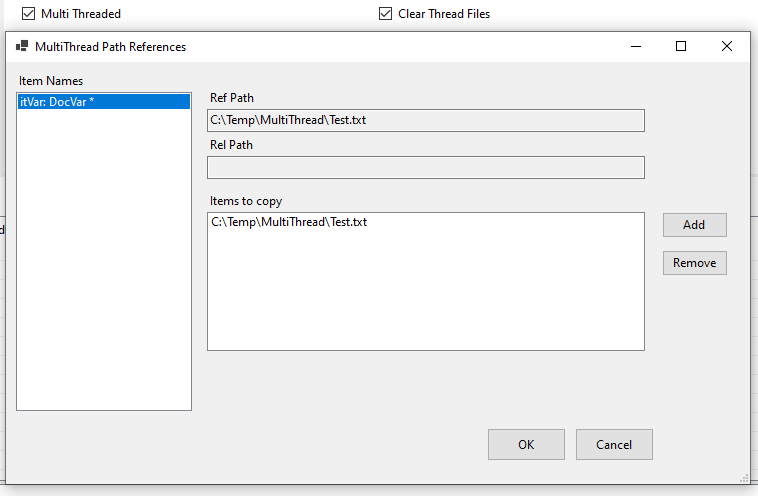
The user will then be able to specify the number of threads to run the simulation. By default, the number of available threads up to 75% of the total threads are selected. The drop-down menu "Showing Thread" specficies which thread will have its results shown in the results monitor. Even if the thread value is 1, it will still use the multi-threading process and is a good way to test the results.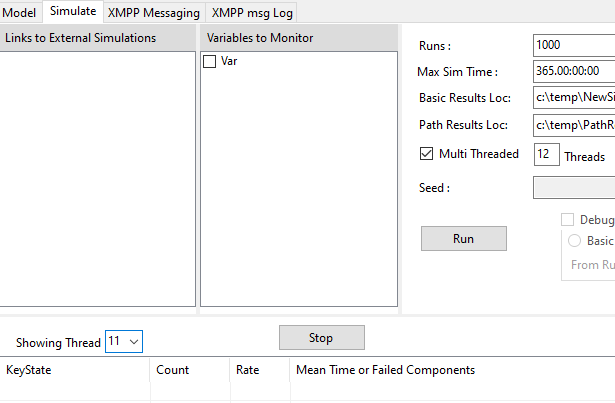
Running and Results
Once configured, the simulation can be run with the "Run" button. Items specified in the path references prompt will be copied to the users AppData/Roaming/Emrald folder. Here, a folder containing the copied items, path results, and simulation results is generated for each thread specified. To aovid clutter, these files may be cleared automatically after the simulation by checking the "Clear Thread Files" box next to the "Multi Threaded" box. The folder names are of the format:
"[FileName]_T[ThreadNumber]"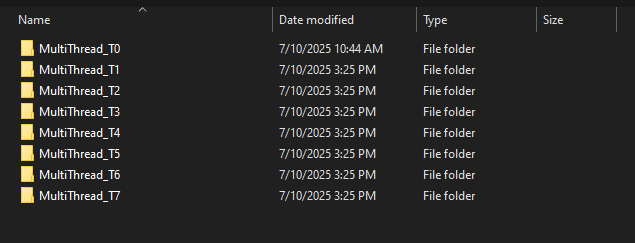
Once the simulation is finished, the results across all the threads are summed and output in the solver table and the results files. Note that if part of your desired results are saved in variables (e.g., summing some value over all the simulation runs), the values in those variables will not necesarraly be correct, because they will only be from one subset of the entire results. In these cases, the user will have to uncheck the "Clear Thread Files" and compile the total results manually.
Modeling Rules for Multi-Threading
- Keep the EMRALD model and its input files together in one folder when practical. This makes the model easier to package and gives EMRALD a clear root for relative paths.
- Use relative paths for model resources that should be copied for each thread. Confirm those resources in the multi-thread path-reference prompt in the Solver GUI before running from the command line. These path adjustments are saved with the model and may need to be updated per machine.
- In scripts, use
RootPathwhen building paths that must point to the active model copy. In multi-thread mode,RootPathpoints to that thread's temporary folder. - Use
OrigRootPathonly when the script intentionally needs the original model folder. Do not write shared thread output there unless the script handles file naming and synchronization. - For Run Application actions, include any executable support files in the path-reference setup. If the external executable expects a working directory, select "Use model file as root folder" or pass explicit paths built from
RootPath. - Avoid writing every thread to the same output file name in a shared folder. Write output under
RootPathor include a thread-specific name. - Test a model with multi-thread mode enabled and the thread count set to 1 before increasing the thread count. A thread count of 1 still uses the multi-thread copy-and-path-adjustment process.
For more information regarding multi-thread solving, see EMRALD Backend Information